Introduction
A Picture Archiving and Communication System (PACS) is a medical imaging technology which provides economical storage of and convenient access to images from multiple modalities (source machine types).
In our case we can use it to create pre-production environments to test PACS communications. For example, we can setup a PACS to send endoscopy images and retrieve radiology samples to an application.
We are going to use the dcm4chee open source solution from dcm4che.org. This is a JEE and JMX system which is deployed within the JBoss Application Server to provide a number of clinical services. It may be used for a variety of different purposes, the most popular being:
- a DICOM archive and image manager
- a PACS, when coupled with a viewer such as OsiriX, K-PACS, ClearCanvas, Ginkgo CADx, etc.
As a host, trying to use always open source solutions, we are going to use a GNU/Linux operating system, specifically Kubuntu 14.04 LTS (Long Term Supported).
As a database we are going to use PostgresSQL (9.3).
We can find installation instructions at dcm4chee page, but there are not always updated, so I will show all the steps for the current versions.
Installation of JDK
Although we can use the openjdk that comes with kubuntu, we are going to use the one from Oracle.
First we have to download the package from Oracle site:
http://www.oracle.com/technetwork/java/javase/downloads/jdk8-downloads-2133151.html
And choose the one that fits our platform (x86 tar.gz in my case)

Once decrompressed, just copy the folder to /usr/lib and add the following lines at the end of the ~/.bashrc file:
JAVA_HOME=/usr/lib/jvm/jdk1.8.0_25
PATH=$JAVA_HOME/bin:$PATH
export JAVA_HOME
export PATH
We can check the version using the command “java -version”
$ java -version
java version “1.8.0_25”
Java(TM) SE Runtime Environment (build 1.8.0_25-b17)
Java HotSpot(TM) Server VM (build 25.25-b02, mixed mode)
Installation procedure
1. Download and extract the binary distribution package of dcm4chee:
We have to download the latest version of dcm4chee that is relevant to the database we want from sourceforge. In our case, the postgres one.

2. Download the binary distribution package of JBoss Application Server 4.2.3.GA
Download the binary distribution of JBoss 4.2.3.GA from here and extract it into a different directory.
Use neither JBoss 5 nor JBoss 6, because it is completely re-architected and is significantly different than the 4.2 line of JBoss!
If you want to use JDK 5, don’t download JBoss for JDK 6 (jboss-4.2.3.GA-jdk6.zip) – use jboss-4.2.3.GA.zip!
3. Copy files from JBoss to dcm4chee
Go to the dcm4chee-2.18.1-xxx/bin directory and execute the install_jboss.sh script, with the path of your JBoss as installation directory as a parameter.
For example, if we have JBoss downloaded in the same directory as dcm4chee:
dcm4chee-2.18.0-psql/bin$ sh install_jboss.sh ../../jboss-4.2.3.GA/
4. Install the Database Software and create the DCM4CHEE Database
Set permissions on Postgres database. The following setting will trust only connections from the localhost, which is reasonable for a development machine, but may need to be changed for production.
Edit the pg_hba.conf file in order to set the right permissions.
$ sudo vim /etc/postgresql/9.3/main/pg_hba.conf
Set a password for the postgres user
$export PGUSER=postgres
$createdb pacsdb
$psql pacsdb -f dcm4chee-psql-2.18.0/sql/create.psql
This will create all the database structure. Now we have to setup the database access from dcm4chee. In your dcm4chee installation, use a text editor to edit server/default/deploy/pacs-postgres-ds.xml and set the database password. This file controls the dcm4chee connections to the main archive application database.
5. Deploy the Audit Record Repository (ARR)
The Audit Record Repository will help us track any movement in dcm4chee.
Starting with dcm4chee-2.12.0, the binary distribution package of the archive application does NOT include the dcm4chee Audit Record Repository (ARR) anymore. The ARR maintains an audit log of all transactions within the archive. This is necessary for HIPAA and IHE. Some dcm4chee deployment scenarios call for the deployment of the ARR in a standalone fashion because it acts as an ARR for more than one dcm4chee instance, or multiple applications which can take advantage of an external ARR. Commonly though it is deployed within the dcm4chee archive itself.
Download the latest version from soruceforge related with the database we have chosen (postgres in our case)

Go to the dcm4chee-*-xxx/bin directory and execute the install_arr.sh script with the path of the dcm4chee-arr-* installation directory as parameter.
NOTE: Due to a bug, we have to modify two lines of the installer dcm4chee-2.18.psql/bin/install_arr.sh
VERS=3.0.11 should be VERS=3.0.12

cp -v “$ARR_SERV” /lib/dcm4che-core-2.0.25.jar \ should be cp -v “$ARR_SERV” /lib/dcm4che-core-2.0.27.jar \

Now we can run the installer without problem.
dcm4chee-2.18.0-psql/bin$ sh install_arr.sh ../../dcm4chee-arr-3.0.12-psql/
We have to create the arr database in Postgres and create the structure using the script from the dcm4chee-arr sql folder:
dcm4chee-arr-3.0.12-psql/sql$ psql arrdb -f dcm4chee-arr-psql.ddl
Now we have to set the ARR database acces. In your dcm4chee installation, use a text editor to edit server/default/deploy/arr-psql-ds.xml and set the database password. This file control the dcm4chee connections to the Audit Record Repository (ARR) database.

6. Set environment variable JAVA_HOME to JDK location
The dcm4chee startup/shutdown scripts depend on the JAVA_HOME environment variable in order to find the Java executables and libraries. For example, if your JDK is installed at “/usr/lib/jvm/jdk1.8.0_25” then that is the path to JAVA_HOME.
If you choose to add in the ~/.bashrc file, remember the PACS would not start unless you start the session.
7. Optional: Adjust maximum allocation of heap memory
Java programs run with a finite amount of memory allocated to them. If you anticipate high volumes of storage and retrievals, or very large datasets, you may want to increase the max (-Xmx) heap size of the Java process.
Linux/Unix/OSX: dcm4chee-2.xx-xxx/bin/run.conf
# Specify options to pass to the Java VM.
if [ "x$JAVA_OPTS" = "x" ]; then
JAVA_OPTS="-Xms128m -Xmx512m -XX:MaxPermSize=128m ..
fi
according to available RAM and memory requirements of other processes on this node.
E.g.: if only 512 MB RAM are available, you should decrease the default value -Xmx512m to (e.g.) -Xmx300.
8. Test the installation
To test your installation, go to the dcm4chee-2.xx-xxx/bin directory and execute the run.sh script. Your output should look like the following and contains no error or exception messages:
=========================================================================

 JBoss Bootstrap Environment

 JBOSS_HOME: /home/daniel/Downloads/dcm4chee-2.18.0-psql

 JAVA: /usr/lib/jvm/jdk1.8.0_25/bin/java

 JAVA_OPTS: -Dprogram.name=run.sh -server -Xms128m -Xmx512m -XX:MaxPermSize=128m -Dsun.rmi.dgc.client.gcInterval=3600000 -Dsun.rmi.dgc.server.gcInterval=3600000 -Djboss.messaging.ServerPeerID=0 -Djavax.xml.transform.TransformerFactory=com.sun.org.apache.xalan.internal.xsltc.trax.TransformerFactoryImpl -Djava.awt.headless=true -Dapp.name=dcm4chee -Djava.net.preferIPv4Stack=true -Djava.library.path=/home/daniel/Downloads/dcm4chee-2.18.0-psql/bin/native

 CLASSPATH: /home/daniel/Downloads/dcm4chee-2.18.0-psql/bin/run.jar:/usr/lib/jvm/jdk1.8.0_25/lib/tools.jar

=========================================================================

Java HotSpot(TM) Server VM warning: ignoring option MaxPermSize=128m; support was removed in 8.0
19:43:15,087 INFO [Server] Starting JBoss (MX MicroKernel)...
19:43:15,088 INFO [Server] Release ID: JBoss [Trinity] 4.2.3.GA (build: SVNTag=JBoss_4_2_3_GA date=200807181439)
19:43:15,089 INFO [Server] Home Dir: /home/daniel/Downloads/dcm4chee-2.18.0-psql
19:43:15,089 INFO [Server] Home URL: file:/home/daniel/Downloads/dcm4chee-2.18.0-psql/
19:43:15,090 INFO [Server] Patch URL: null
19:43:15,090 INFO [Server] Server Name: default
19:43:15,090 INFO [Server] Server Home Dir: /home/daniel/Downloads/dcm4chee-2.18.0-psql/server/default
19:43:15,090 INFO [Server] Server Home URL: file:/home/daniel/Downloads/dcm4chee-2.18.0-psql/server/default/
19:43:15,090 INFO [Server] Server Log Dir: /home/daniel/Downloads/dcm4chee-2.18.0-psql/server/default/log
19:43:15,090 INFO [Server] Server Temp Dir: /home/daniel/Downloads/dcm4chee-2.18.0-psql/server/default/tmp
19:43:15,091 INFO [Server] Root Deployment Filename: jboss-service.xml
19:43:15,359 INFO [ServerInfo] Java version: 1.8.0_25,Oracle Corporation
19:43:15,359 INFO [ServerInfo] Java VM: Java HotSpot(TM) Server VM 25.25-b02,Oracle Corporation
19:43:15,359 INFO [ServerInfo] OS-System: Linux 3.13.0-40-generic,i386
19:43:15,654 INFO [Server] Core system initialized
19:43:17,680 INFO [WebService] Using RMI server codebase: http://daniel-VirtualBox:8083/
19:43:17,682 INFO [Log4jService$URLWatchTimerTask] Configuring from URL: resource:jboss-log4j.xml
19:43:18,095 INFO [TransactionManagerService] JBossTS Transaction Service (JTA version) - JBoss Inc.
....
19:43:49,281 INFO [RequestListenerInterface] registered listener interface [RequestListenerInterface name=IActivePageBehaviorListener, method=public abstract void org.apache.wicket.behavior.IBehaviorListener.onRequest()]
19:43:49,281 INFO [Application] [WicketApplication] init: Wicket extensions initializer
19:43:49,281 INFO [WebApplication] [WicketApplication] Started Wicket version 1.4.22 in deployment mode
19:43:49,347 INFO [EARDeployer] Started J2EE application: file:/home/daniel/Downloads/dcm4chee-2.18.0-psql/server/default/deploy/dcm4chee-web-ear-3.0.4-psql.ear
19:43:49,378 INFO [ServerImpl] Start Server listening on 0.0.0.0:2575
19:43:49,414 INFO [Http11Protocol] Starting Coyote HTTP/1.1 on http-0.0.0.0-8080
19:43:49,440 INFO [Http11Protocol] Starting Coyote HTTP/1.1 on http-8443
19:43:49,460 INFO [AjpProtocol] Starting Coyote AJP/1.3 on ajp-0.0.0.0-8009
19:43:49,472 INFO [ServerImpl] Start Server listening on 0.0.0.0:11112
19:43:49,473 INFO [Server] JBoss (MX MicroKernel) [4.2.3.GA (build: SVNTag=JBoss_4_2_3_GA date=200807181439)] Started in 34s:379ms
9. Login into web interface
Connect to the Web Interface at http://localhost:8080/dcm4chee-web3/ of the archive using any Web Browser. You should get the User Login Screen. Login in using default Administrator account ‘admin’, with password ‘admin’.


10. Login to JMX Console
Connect to JBoss’s JMX Console at http://localhost:8080/jmx-console/ and login using also the Administrator account ‘admin’, with password ‘admin’.
Follow the link “group=ONLINE_STORAGE,service=FileSystemMgt” to the configuration page for File System Management service under the “dcm4chee.archive” heading.
Invoke the operation addRWFileSystem(), with argument dirPath specifying the directory, where the archive shall store received objects/images.
If no Storage File System is configured, the archive will auto-configure dcm4chee-2.xx.1-xxx/server/default/archive as Storage File System, when receiving the first object/image.

11. Optional: Change the default AE Title
Connect to JBoss’s JMX Console at http://localhost:8080/jmx-console/ and login using also the Administrator account ‘admin’, with password ‘admin’.
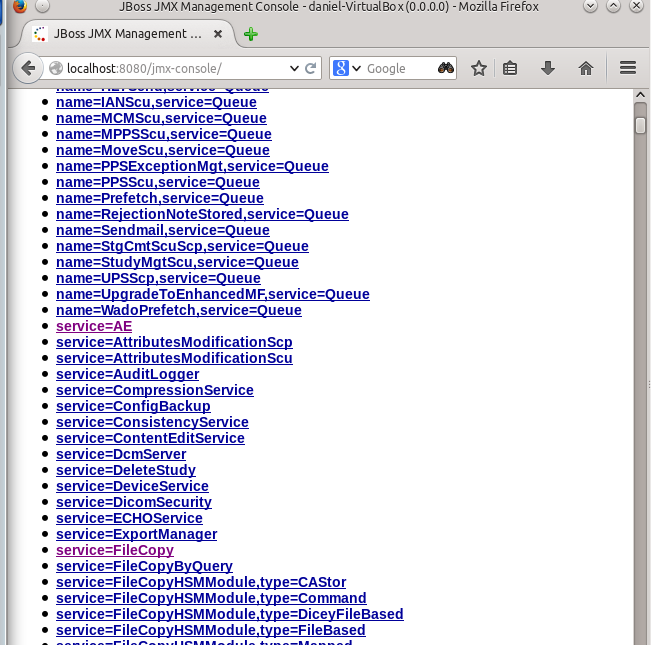
Follow the link “service=AE” to the configuration page for AE (Application Entity – a DICOM term for a DICOM node on the network) service under the “dcm4chee.archive” heading.
Invoke the operation update AETitle with the old AE Title (DCM4CHEE if unchanged from the default), and new AE Title as parameters.
This will update the following configurations:
- update the “retrieve AET” of file systems, associated to the current retrieve AET of this node
- update “retrieve AETs” of all instances, series and studies that have files on these filesystems
- update the entry for the “retrieve AE” in the AE Configuration
- update the AE Title of all services listed by attribute OtherServiceAETitleAttributesToUpdate
12. Install as a service
 |
If running as a service or daemon on any operating system, you should disable CONSOLE logging as noted here:http://forums.dcm4che.org/jiveforums/thread.jspa?messageID=4787ኳ |
After verifying that the archive works, you may want to run it as a service so that it stays running even when you log out. If still running in the console window, you may stop the archive by Ctrl+C, and copy the init script dcm4chee_init_redhat.sh to /etc/init.d/ and adjust it according your installation location of the archive and the JDK and under which user the archive application shall run.
